

Videowall
Display live queue activity in large tiles, with queue groups, tile sizing and light or dark appearance.
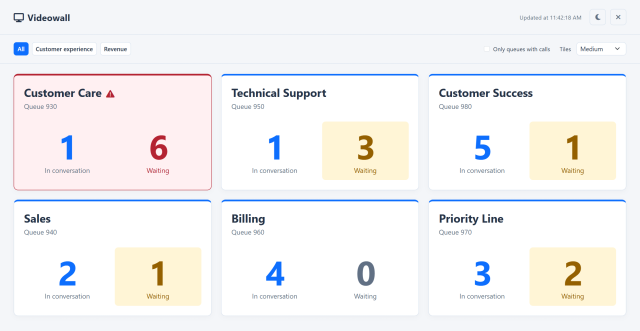
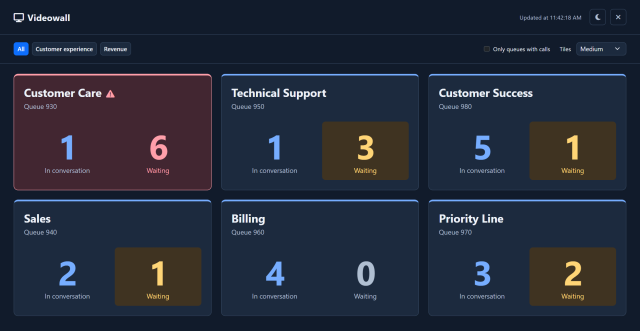
Slide the divider to compare the same workspace.
DarkRead the signal.
Choose the next step.
Know when the picture was refreshed
A room display is useful only if the team can judge its freshness. Videowall shows its latest update and flags stale data when the PBX cannot refresh, so an unchanged tile can be read in the context of the connection status.
Place your busiest queues on a large screen, use dark mode for a control room and increase tile size to keep the most important counts readable.
Put it to work
Choose a queue section and display only queues with active calls when you want a more focused overview.
Adjust tile size and theme to suit the screen and viewing distance, with waiting alerts tied to your preferences.
Assign a dedicated Display account whose live visibility follows the queues and permissions set by the administrator.
What you can do
Room-scale visibility
Full-screen queue tiles show in-conversation and waiting counts.
Keep the right queues on screen
Select queue sections or show only queues with active calls.
Size and contrast that suit the room
Choose compact, medium, large or extra-large tiles and dark mode.
Make waiting pressure visible
Waiting-count threshold highlights queues needing attention.
Know how fresh the picture is
Last-update and stale-data indicators preserve context if the PBX cannot refresh.
Display sessions
Give the room a dedicated, read-only Display account with Videowall access. The screen stays connected without an inactivity timeout, with a maximum session duration configured by the administrator.
Read the detail with confidence
A dedicated account for the shared screen
Create a dedicated account with the Display profile and grant only the Videowall permission. Sign in on the room’s screen with that account: it shows the authorized queues in read-only mode, with access limited to Videowall, without using a Team Leader’s personal credentials.
Display sessions stay active without disconnection due to inactivity. The administrator sets their maximum duration, from one hour to 30 days; the default is seven days. This keeps the room’s display available for the period you choose.
Explore users and access profilesUseful information, at a glance
A few clear indicators bring waiting calls, ongoing conversations and queue pressure into view. Large figures, recognizable colours and waiting alerts help the team see where attention is needed, even from across the room.
Choose the queue section that matters to the team and adjust tile size to the room. The information needed to follow the workload stays easy to find.