

Extension monitor
Inspect extension states, concurrent calls, registered devices and each agent’s queue memberships.
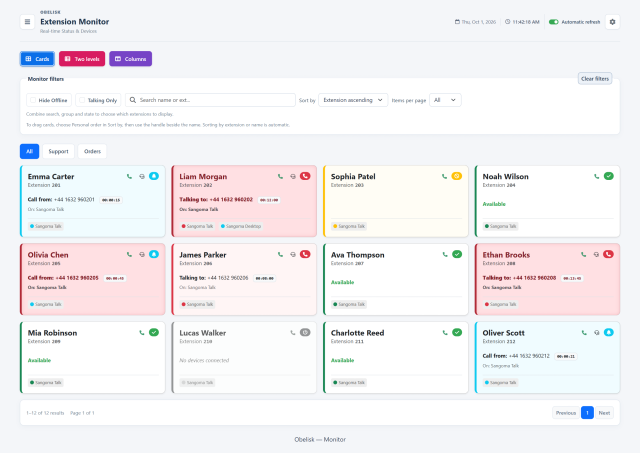
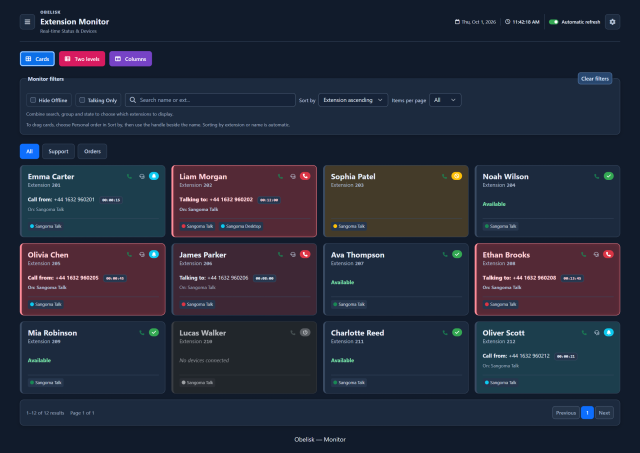
Slide the divider to compare the same workspace.
Dark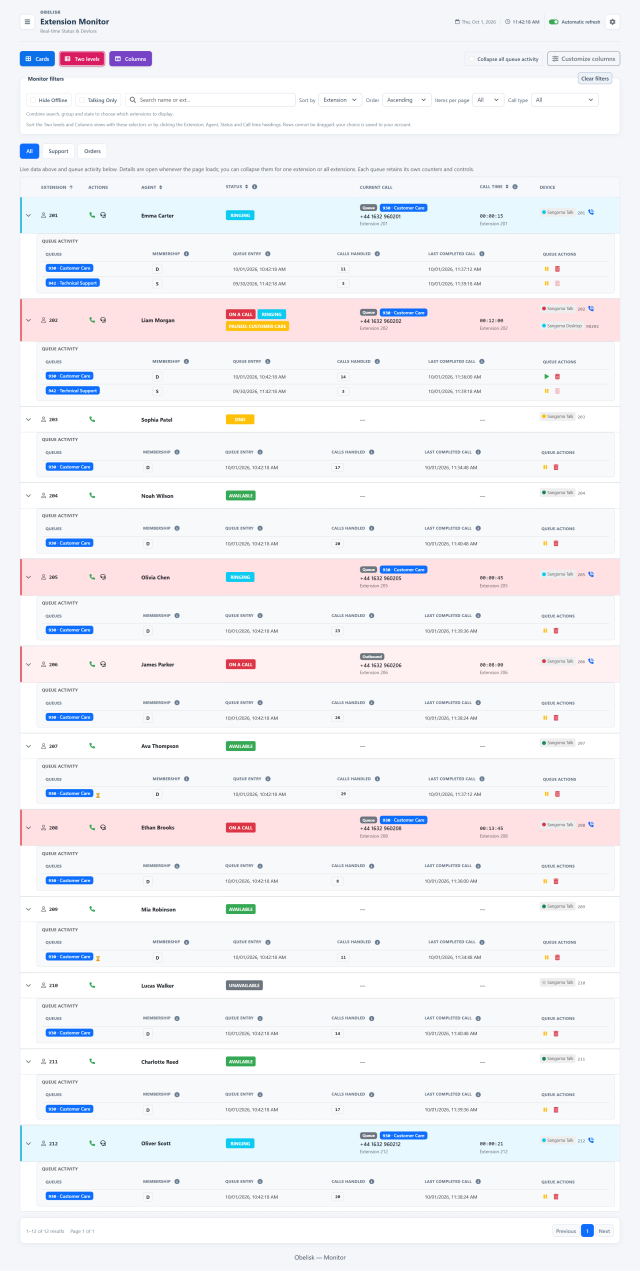
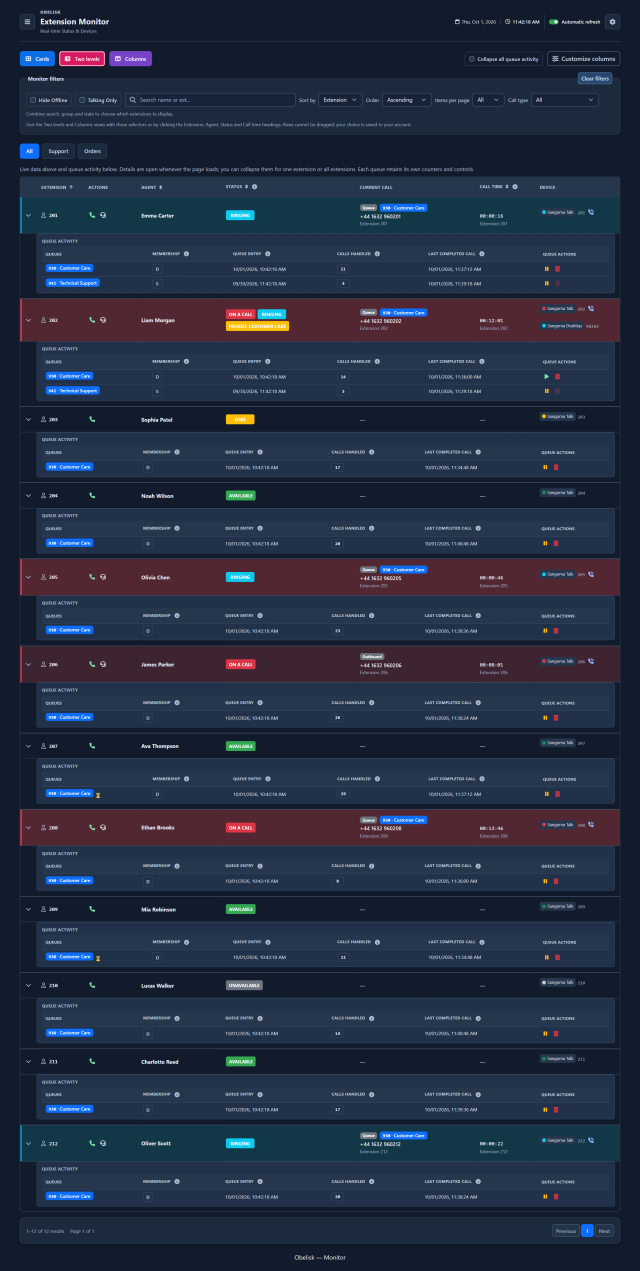
Slide the divider to compare the same workspace.
Dark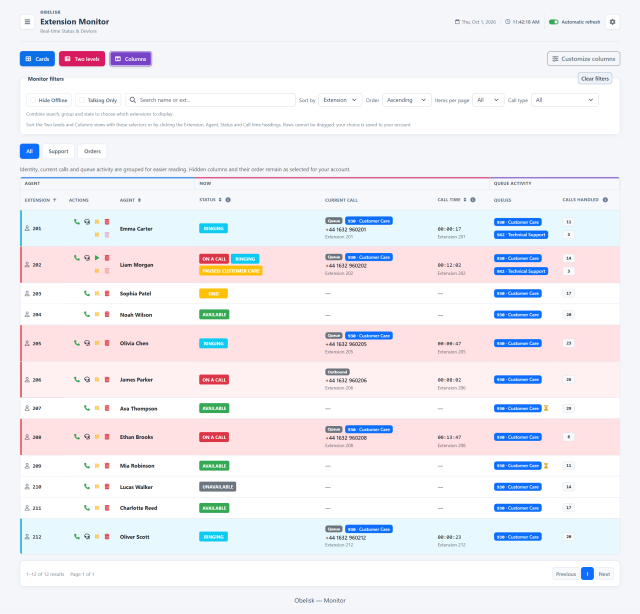
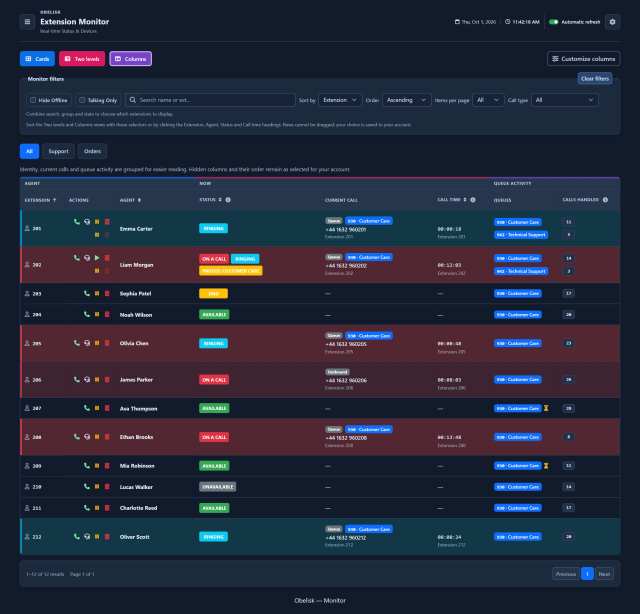
Slide the divider to compare the same workspace.
DarkEvery direction. One Monitor.
Monitor follows all active calls involving the extensions visible to your account: inbound and outbound, external and internal. You can read the team’s live activity even when calls do not pass through a queue.
Inbound
Follow calls coming from outside, including those handled through queues.
Outbound
See who is making an outgoing call and read its state and elapsed time.
Internal calls
Keep conversations between extensions in view alongside external calls.
A clear view for outbound teams, too
Whether your contact center also makes outbound calls or works exclusively on outbound activity, Monitor keeps the operation in view. Sections and groups organise extensions; search, state and call-type filters quickly bring the people and signals you need to the foreground.
Know what to look for.
An active extension
Read the current caller, call duration and connected device on an extension card.
Two levels
Live extension data above, with expandable queue activity below each operator.
Queue activity columns
Connect extension state with queue memberships and the last completed call.
Every state has a clear signal.
Read the extension’s live states and its queue memberships together. An agent can be on a call and paused in a queue at the same time: the badges keep both pieces of information visible.
- Free
- In conversation
- Ringing
- DND
- Paused in a queue
- Unavailable
- On a call + ringing
- On hold
- Unknown
- Other participant
- +44 20 7946 0128
- Device in use
- Sangoma Desktop
The call, the device, the context.
Recognise the device involved in the call, such as Sangoma Desktop or Sangoma Talk on mobile. Read the other participant, extension and elapsed time; in the table views, the call type and queue add context to each conversation, including simultaneous calls.
The timer follows the call channel from its creation, including ringing. Read it alongside the current call state.
Colour brings a long call to your attention.
Personal thresholds in Preferences highlight prolonged ringing and busy time. When an enabled threshold is exceeded, the card or table row turns into a red alert. Set the values that suit your team.
Choose your alert thresholdsExample: ringing alert above 30 seconds.
Manage availability in each queue
In the queue detail, pause or resume the agent and read the pause reason. Remove a dynamic membership from the selected queue when needed. The controls follow the permissions assigned to your account.
Listen, coach, join in
Open the headset control for an active call and choose Listen, Whisper or Conference among the modes enabled for your account. Support the agent directly from Monitor.
Explore live supervisionCall the agent with a click
Choose the phone control, enter your Team Leader extension and confirm. Your phone rings first; answer and the PBX connects the call to the selected extension, without dialling its number by hand.
Make Monitor your own.
Team Leaders: your view, your alerts
In Preferences, each Team Leader can personalise the Monitor’s appearance and alert thresholds. Highlight prolonged ringing, long busy periods and inactivity with values that fit your team. Your saved choices shape your own working view.
Explore personal PreferencesAdministrators: organise the workspace
In Operational views, administrators configure Monitor, organise sections and groups of extensions, and decide how to present the team’s activity. Personal preferences then let each Team Leader adapt their daily view.
Explore Operational viewsRead the signal.
Choose the next step.
One extension, several queue states
An agent can be paused in one queue and available in another. The Two levels layout places the extension’s current call above its individual queue memberships, making it easier to understand both what the person is doing and where they can receive the next call.
States, times and activity together
Read the extension state, call type and elapsed channel time together, including the ringing phase. Queue detail adds handled-call counters, the last completed call and pause status, while personal alert thresholds help you identify where support may be useful.
Follow internal, inbound and outbound calls for the extensions visible to your account, alongside each agent’s live state, devices and queue memberships. From the same workspace, inspect handled calls and the last completed call, manage availability in a selected queue, call an extension or open the supervision controls available to your account.
Put it to work
Search by name or extension, combine state filters and choose a group to find the operators that matter now.
Read simultaneous calls, elapsed channel time, handled-call counters and the last completed call alongside each queue membership.
With the assigned permissions, pause or resume an agent in a selected queue, remove a dynamic membership, call an extension or open live supervision.
What you can do
Choose your view
Switch between Cards, Two levels and Columns. Search by name or extension, combine state and group filters, sort the list and save your preferred columns for your account.
Read the agent’s live situation
State indicators distinguish available, ringing, busy, DND and unavailable extensions. Device information and queue pause indicators add context: the same person can be paused in one queue and active in another.
Follow every active call
See concurrent calls for the extensions visible to your account, with caller and called-party details, endpoint and call type: queue, internal, inbound or outbound, when identified. The timer follows the life of the call channel, including ringing, so you can read elapsed time alongside the current state.
See each queue membership
Expand the queue detail to read membership, pause state, handled-call count, last completed call and membership creation time. Each row puts the agent’s activity in the context of that queue, using the counters supplied by the PBX.
Manage availability in the right queue
Use the permitted controls to pause or resume an agent in the selected queue. For dynamic memberships, you can also remove the agent from that queue. Each confirmed command applies to the individual membership you selected.
Contact and support the agent
The phone action starts a direct call: the PBX rings your supervisor extension first, then connects you to the selected extension. The headset action opens Listen, Whisper or Barge according to your permissions.
Focus on the signals that need attention
Personal thresholds highlight prolonged ringing, extended busy time and agent inactivity. Read the alert alongside call state, the timer, queue activity and the last completed call to decide who needs support.
Share a view with the room
Use a Display account to show authorized live views on a shared screen in read-only mode, with a configurable session duration. Operational controls stay with the accounts authorized to use them.