

Recordings
Browse recordings and review the saved quality indicators, summaries, business insights and transcripts.
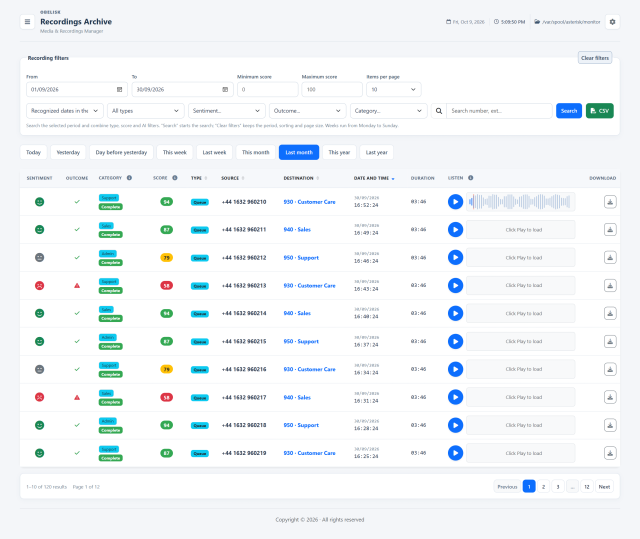
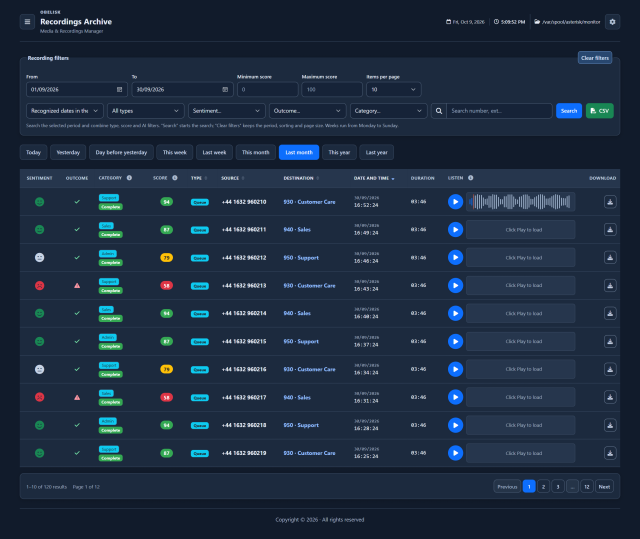
Slide the divider to compare the same workspace.
DarkKnow what to look for.
Integrated audio player
Play a selected recording and follow its waveform and duration.
Summary and transcript
Read the interaction summary and dialogue alongside the recording.
Conversation insights
Review churn risk, empathy and privacy signals alongside upsell opportunities, named competitors, objections, pain points and next actions.
One smile. The whole conversation.
Click the sentiment icon to open the complete analysis: quality, outcome, category, churn, empathy, privacy, market signals, feedback, actions, summary and transcript.
Interactive example with fictional data. Read every field and scroll through the full transcript.
Inbound · queue call · 03:46
94 / 100 ResolvedFind the call. Read its context.
The archive brings call details and available audio together. These basic details remain useful even when AI analysis is not enabled.
Date and time
Locate the conversation in the selected period.
Caller and called party
Read the source and destination associated with the recording.
Call type
Distinguish internal, external and queue recordings.
Audio duration
Read the length of the available audio file, alongside its playback controls.
Listen and investigate
Play the waveform, then open the saved analysis and transcript allowed by your account.
A score tells you where to look. The explanation tells you why.
When analysis is available, read the indicators together and return to the conversation for context.
Sentiment
The AI assessment of the conversation’s tone helps you locate satisfied customers and interactions worth reviewing.
Quality score and explanation
A score from 0 to 100 considers politeness, resolution, empathy and clarity. The accompanying sentence explains the assessment and gives the Team Leader a starting point for coaching.
Outcome and resolution
See whether the analysis identifies a resolved request, an unresolved issue or a need to involve a manager. Use the result to decide which conversations need follow-up.
Category
Group conversations by their main subject and narrow the archive to a type of request. The analysis prompt proposes these categories; the filter shows the categories actually saved in your data.
A missing value is not a zero or a negative result. Analysis status distinguishes complete, partial, processing and error results, so you can see which information is actually available.
Recognize risk. Support the relationship.
Churn risk
A score on a ten-point scale highlights signals that the customer may leave. Read the reason alongside the score to understand the concern and choose a follow-up.
An AI risk estimate to investigate, rather than a measured probability.
Agent empathy
One to five stars summarize how the AI interprets the agent’s empathy. Compare the signal with the words used and the context before planning a coaching session.
Privacy and terms
The indicator checks whether the analysis detected a mention of privacy or terms in the conversation. It helps you review the script followed by the agent.
This observation does not certify consent or legal compliance.
Opportunities, obstacles and next steps.
Market signals
Upsell marks a possible commercial opportunity. Competitor mentions show the names found in the conversation, so you can understand which alternatives the customer is considering.
Customer feedback
The main objection captures what is holding the customer back. Pain points collect the problems and frustrations that emerged: useful material for improving processes, service and explanations.
Action items
Review the next steps extracted from the conversation: a callback, a check, a document to send or a commitment to verify. The list helps the team decide what to do next.
Suggested actions are information to review; they do not execute tasks automatically.
The overview and the words behind it.
Interaction summary
Read the request, the response and the result in a compact account. It gives you a quick entry point before checking the detailed indicators or listening again.
Chat-style transcript
Follow the saved dialogue by speaker, where identified, to understand the phrases behind a score or a suggested action. Open the transcript according to your permissions and compare it with the audio when available.
Read the signal.
Choose the next step.
From a score to the conversation
A score helps you find a call worth reviewing. Open its saved analysis to understand the assessment, read the summary and transcript where permitted, then listen to the available audio for context. This connects a numerical signal with the words that produced it.
Audio and analysis have their own lifecycle
Scheduled audio retention can remove an eligible file while preserving its saved analysis. The archive therefore remains useful for reviewing a summary or transcript after the audio’s retention period, with playback available for recordings whose files are still present.
Choose a period, search for a number or extension and narrow the archive by call type. When saved analysis is available, add sentiment, outcome, category and score filters to find the conversations your team should review next.
Put it to work
Combine dates, phone or extension search and analysis filters to locate the conversations relevant to your review.
Play or download available audio with the appropriate permissions, and open the saved summary or speaker-separated transcript.
Review sentiment, quality, resolution and business insights alongside analysis status, with audio availability clearly separated from saved results.
What you can do
Search with purpose
Search by period, number, extension, call type, quality score and available AI fields.
Hear the conversation
Listen to authorized recordings in the browser or download permitted audio.
Read the available analysis
Open saved summaries, sentiment, quality, categories, transcript and business insights.
Keep review work moving
Sort and paginate results, use quick periods and export permitted filtered data to CSV.
Recognize incomplete records
Review analysis status, missing audio and recordings whose dates need verification.
Choose how analysis works for your team.
Administrative settings connect model choice, workload and retention. Start with the options your installation actually needs.
Model and provider account
Choose the Gemini model, your API key and analysis temperature in System. Match the selected model and workload to your needs; provider charges follow your own account.
Batch and processing
Set the maximum files selected by each worker run and the pause between runs. A worker analyzes one file at a time; separate workers may operate concurrently.
Time window and backlog
Choose how far back to discover recordings. The processing queue balances recent files with pending work; browsing the archive by date is a separate operation.
File size and readiness
Set the maximum file size, minimum useful size and stability interval before analysis. The worker checks that the audio is available and no longer changing.
Recovery and waiting times
Configure stale-processing recovery and request timeouts, then review worker state and errors to understand what needs attention.
Retention and access
Define the audio retention period and maintenance policy. Assign playback, analysis, transcript and export permissions to the accounts that need them.
Make the policy as clear as the data.
How do I define an audio retention policy?
Choose a retention period suited to the purpose of recording and configure the available audio retention and maintenance controls. Review access permissions and the information given to participants as part of your organization’s policy.
Do audio and saved analysis expire together?
They have separate lifecycles. Audio retention can remove an eligible file while its saved analysis remains available. Summaries, transcripts and other derived data may still contain personal data: define their retention and deletion separately. Removing the audio alone does not delete every piece of personal data.
What does the privacy indicator tell me?
It reports whether the AI detected a mention of privacy or terms in the conversation. Use it as a prompt to review the call and your procedures. It is not a certification of consent, legal basis or GDPR compliance.
What remains available without Gemini?
You can browse call metadata and available recordings according to your permissions. AI indicators require saved analysis; their absence does not prevent you from using operational reports and the core platform. Enabled analysis sends the necessary content to Gemini using your provider account.